

AI Agent Component Spec
AI Agent Component Spec
Where It Fits
CometChatUsers is a list component. It renders all available users and emits the selected User via setOnItemClick. Wire it to CometChatMessageHeader, CometChatMessageList, and CometChatMessageComposer to build a direct messaging layout.
- Kotlin
- Java
ChatActivity.kt
Quick Start
Add the component to your layout XML:layout_activity.xml
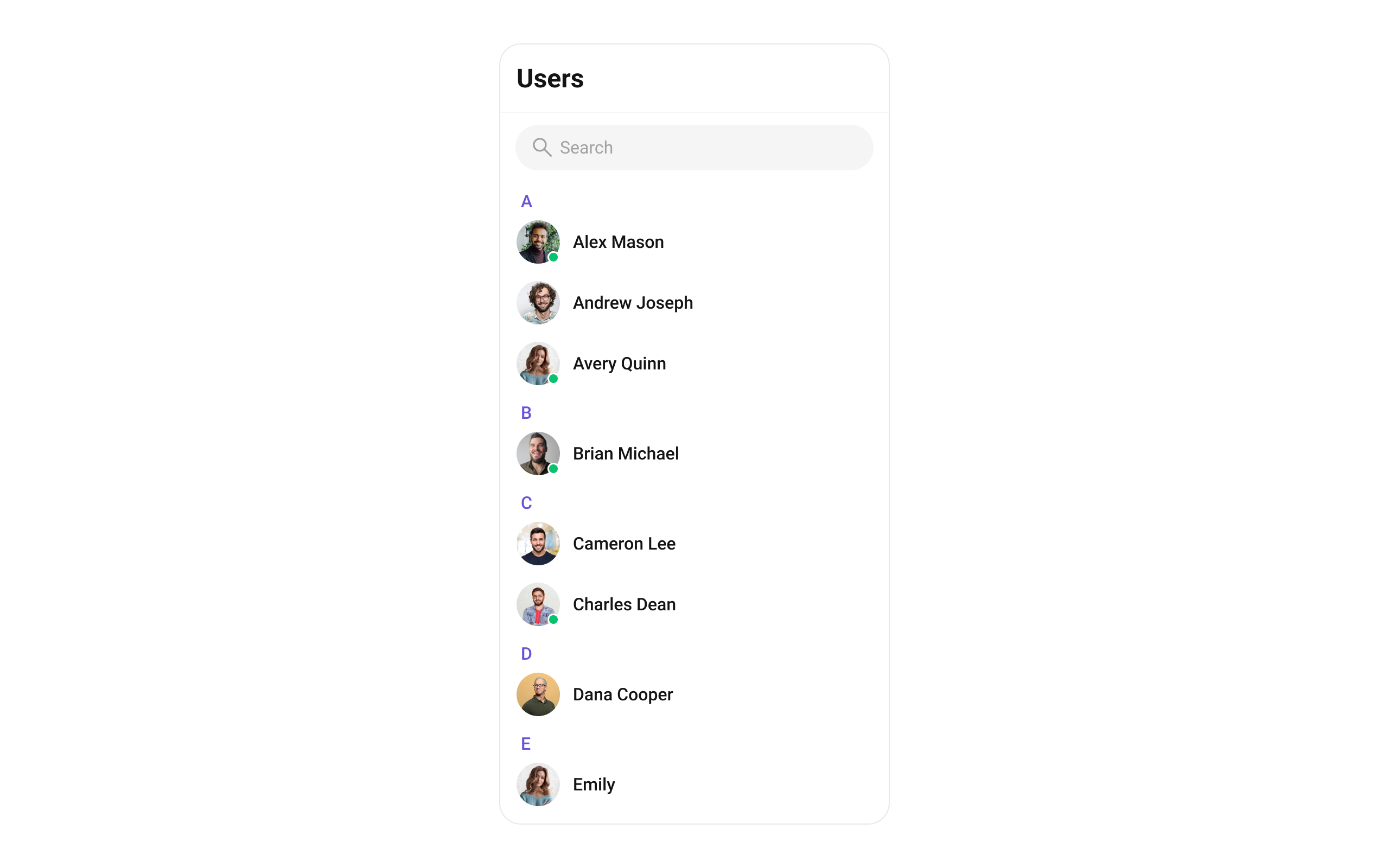
CometChatUIKit.init(), a user logged in, and the cometchat-chat-uikit-android dependency added.
To add programmatically in an Activity:
- Kotlin
- Java
YourActivity.kt
- Kotlin
- Java
YourFragment.kt
Filtering Users
Pass aUsersRequest.UsersRequestBuilder to setUsersRequestBuilder. Pass the builder instance — not the result of .build().
- Kotlin
- Java
Filter Recipes
| Recipe | Code |
|---|---|
| Friends only | builder.friendsOnly(true) |
| Limit to 10 per page | builder.setLimit(10) |
| Search by keyword | builder.setSearchKeyword("john") |
| Hide blocked users | builder.hideBlockedUsers(true) |
| Filter by roles | builder.setRoles(Arrays.asList("admin", "moderator")) |
| Filter by tags | builder.setTags(Arrays.asList("vip")) |
| Online users only | builder.setUserStatus(CometChatConstants.USER_STATUS_ONLINE) |
| Filter by UIDs | builder.setUIDs(Arrays.asList("uid1", "uid2")) |
The component uses infinite scroll — the next page loads as the user scrolls to the bottom. Refer to UsersRequestBuilder for the full builder API.
Search Request Builder
UsesetSearchRequestBuilder to customize the search list separately from the main list:
- Kotlin
- Java
Actions and Events
Callback Methods
setOnItemClick
Fires when a user row is tapped. Primary navigation hook — set the active user and render the message view.
- Kotlin
- Java
YourActivity.kt
What this does: Replaces the default item-click behavior. When a user taps a user item, your custom lambda executes instead of the built-in navigation.
setOnItemLongClick
Fires when a user row is long-pressed. Use for additional actions like block or mute.
- Kotlin
- Java
YourActivity.kt
setOnBackPressListener
Fires when the user presses the back button in the app bar. Default: navigates to the previous activity.
- Kotlin
- Java
YourActivity.kt
setOnSelect
Fires when a user is checked/unchecked in multi-select mode. Requires setSelectionMode to be set.
- Kotlin
- Java
YourActivity.kt
setOnError
Fires on internal errors (network failure, auth issue, SDK exception).
- Kotlin
- Java
YourActivity.kt
setOnLoad
Fires when the list is successfully fetched and loaded.
- Kotlin
- Java
YourActivity.kt
setOnEmpty
Fires when the list is empty, enabling custom handling such as showing a placeholder.
- Kotlin
- Java
YourActivity.kt
- Verify: After setting an action callback, trigger the corresponding user interaction (tap, long-press, back, select) and confirm your custom logic executes instead of the default behavior.
Global UI Events
CometChatUserEvents emits events subscribable from anywhere in the application. Add a listener and remove it when no longer needed.
| Event | Fires when | Payload |
|---|---|---|
ccUserBlocked | The logged-in user blocks another user | User |
ccUserUnblocked | The logged-in user unblocks another user | User |
- Kotlin
- Java
Add Listener
SDK Events (Real-Time, Automatic)
The component listens to these SDK events internally. No manual attachment needed unless additional side effects are required.| SDK Listener | Internal behavior |
|---|---|
onUserOnline | Updates online status indicator for the user |
onUserOffline | Updates offline status indicator for the user |
Automatic: user presence changes update the status indicator in real time.
Functionality
Small functional customizations such as toggling visibility of UI elements and configuring selection modes.| Methods | Description | Code |
|---|---|---|
setBackIconVisibility | Toggles visibility for the back button in the app bar | .setBackIconVisibility(View.VISIBLE); |
setToolbarVisibility | Toggles visibility for the toolbar in the app bar | .setToolbarVisibility(View.GONE); |
setStickyHeaderVisibility | Toggles visibility for the alphabetical sticky header | .setStickyHeaderVisibility(View.GONE); |
setLoadingStateVisibility | Hides the loading state while fetching users | .setLoadingStateVisibility(View.GONE); |
setErrorStateVisibility | Hides the error state on fetching users | .setErrorStateVisibility(View.GONE); |
setEmptyStateVisibility | Hides the empty state on fetching users | .setEmptyStateVisibility(View.GONE); |
setSeparatorVisibility | Controls visibility of separators in the list view | .setSeparatorVisibility(View.GONE); |
setUserStatusVisibility | Controls visibility of the online status indicator | .setUserStatusVisibility(View.GONE); |
setSearchBoxVisibility | Controls visibility of the search box in the toolbar | .setSearchBoxVisibility(View.GONE); |
setSelectionMode | Determines the selection mode (single or multiple) | .setSelectionMode(UIKitConstants.SelectionMode.MULTIPLE); |
setSearchKeyword | Programmatically triggers a search with the given keyword | .setSearchKeyword("john"); |
setTitleText | Sets a custom title in the toolbar | .setTitleText("Contacts"); |
setSearchPlaceholderText | Sets the placeholder text for the search input | .setSearchPlaceholderText("Find users..."); |
- Verify: After calling a visibility method, confirm the corresponding UI element is shown or hidden.
Custom View Slots
Each slot replaces a section of the default UI. Slots that accept aUser parameter receive the user object for that row via the UsersViewHolderListener pattern (createView + bindView).
| Slot | Method | Replaces |
|---|---|---|
| Leading view | setLeadingView(UsersViewHolderListener) | Avatar / left section |
| Title view | setTitleView(UsersViewHolderListener) | Name / title text |
| Subtitle view | setSubtitleView(UsersViewHolderListener) | Subtitle text below name |
| Trailing view | setTrailingView(UsersViewHolderListener) | Right section |
| Item view | seItemView(UsersViewHolderListener) | Entire list item row (note: typo in SDK) |
| Loading view | setLoadingView(@LayoutRes int) | Loading spinner |
| Empty view | setEmptyView(@LayoutRes int) | Empty state |
| Error view | setErrorView(@LayoutRes int) | Error state |
| Overflow menu | setOverflowMenu(View) | Toolbar menu |
| Options (replace) | setOptions(Function2) | Long-press context menu (replaces defaults) |
| Options (append) | addOptions(Function2) | Long-press context menu (appends to defaults) |
setLeadingView
Replace the avatar / left section.
- Kotlin
- Java
What this does: Registers aUsersViewHolderListenerthat provides a custom view for the leading (left) area of each user item.createViewinflates your layout, andbindViewpopulates it with user data.
setTitleView
Replace the name / title text.
- Kotlin
- Java
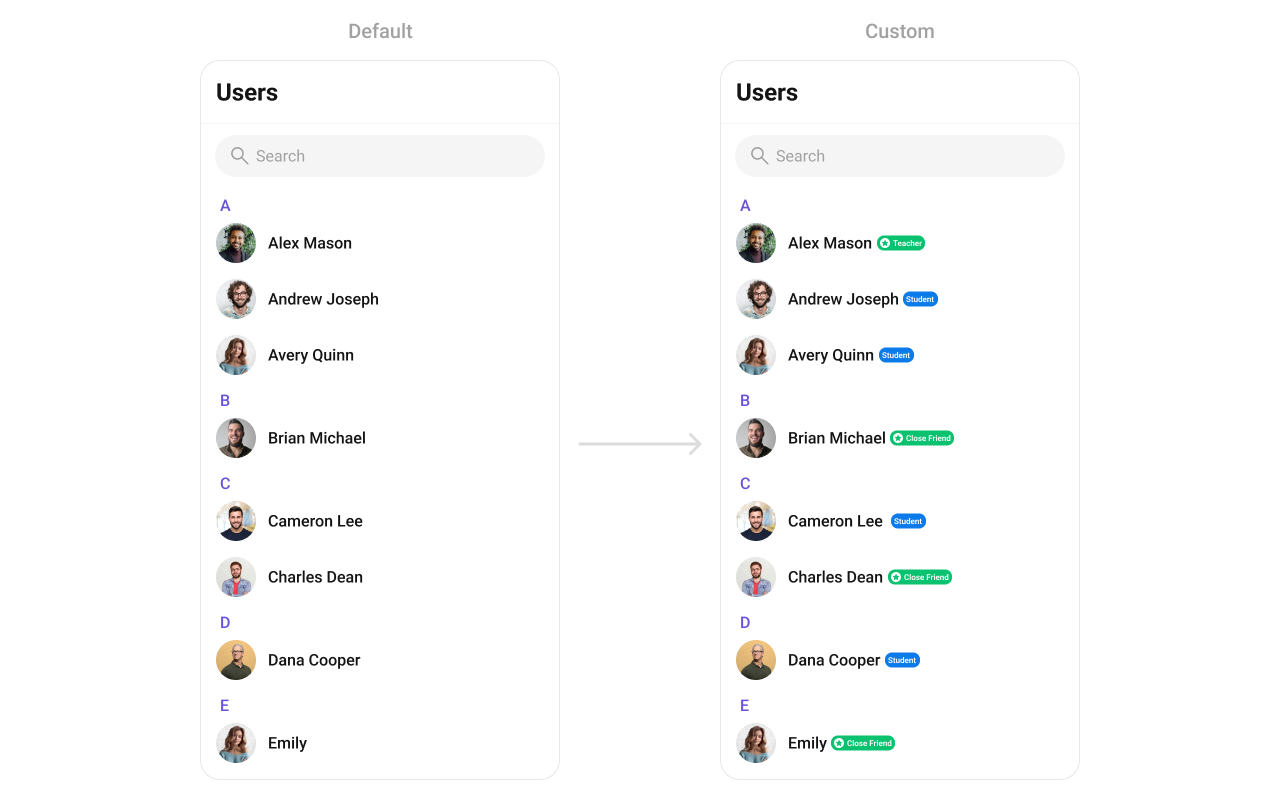
custom_user_title_view.xml layout:
custom_user_title_view.xml
- Kotlin
- Java
setSubtitleView
Replace the subtitle text below the user’s name.
- Kotlin
- Java
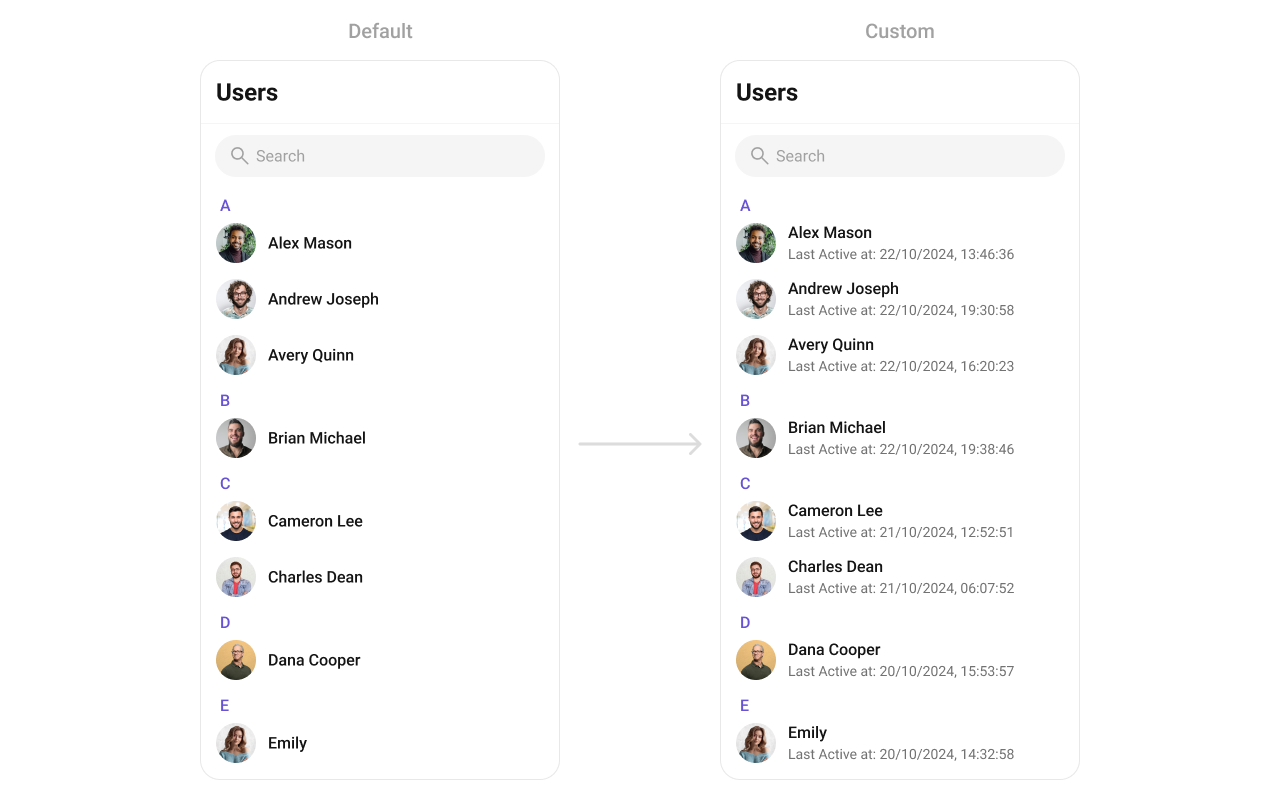
- Kotlin
- Java
setTrailingView
Replace the right section of each user item.
- Kotlin
- Java
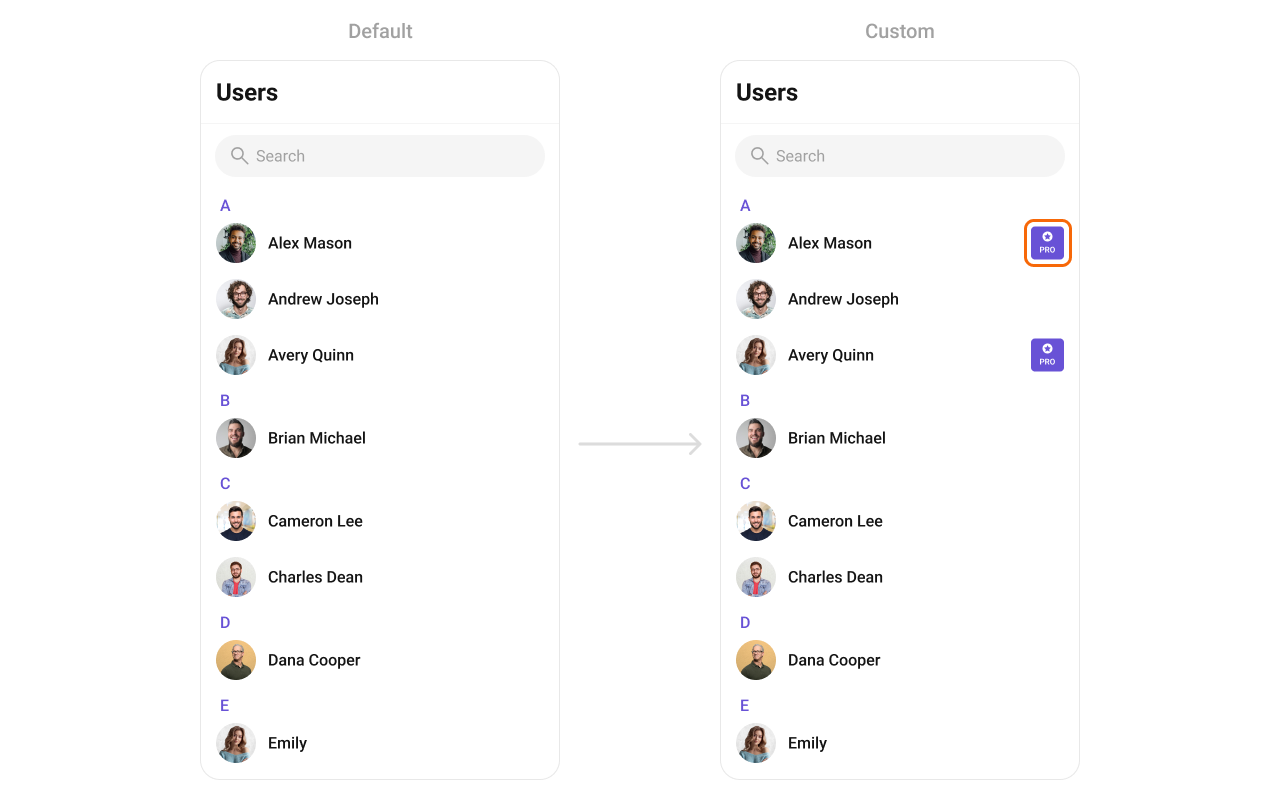
custom_user_tail_view.xml layout:
custom_user_tail_view.xml
- Kotlin
- Java
setItemView
Replace the entire list item row.
The Java method name is
seItemView (note the missing ‘t’). This is a known typo in the SDK. In Kotlin, property access syntax normalizes this.- Kotlin
- Java
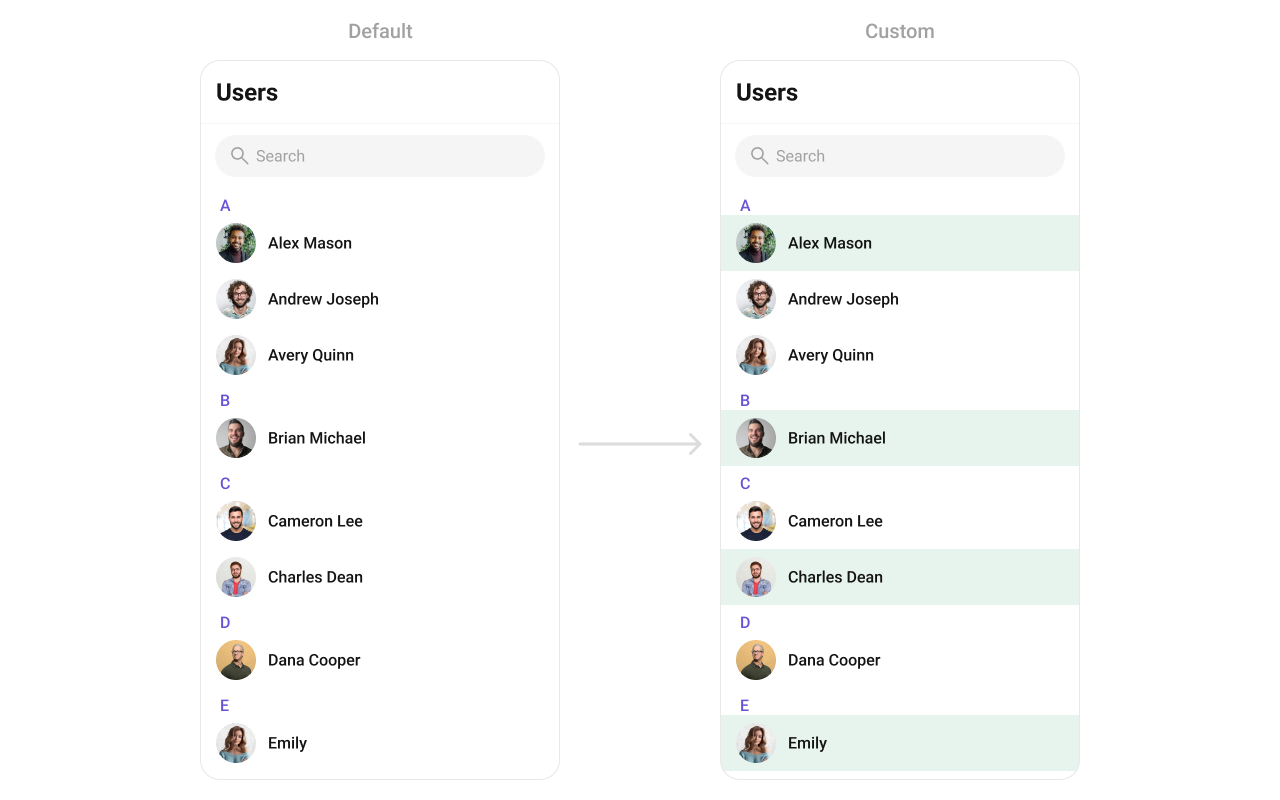
custom_list_item_view.xml layout:
custom_list_item_view.xml
- Kotlin
- Java
setOptions
Replace the long-press context menu entirely.
- Kotlin
- Java
addOptions
Append to the long-press context menu without removing defaults.
- Kotlin
- Java
setLoadingView
Sets a custom loading view displayed when data is being fetched.
- Kotlin
- Java
setEmptyView
Configures a custom view displayed when there are no users in the list.
- Kotlin
- Java
setErrorView
Defines a custom error state view that appears when an issue occurs while loading users.
- Kotlin
- Java
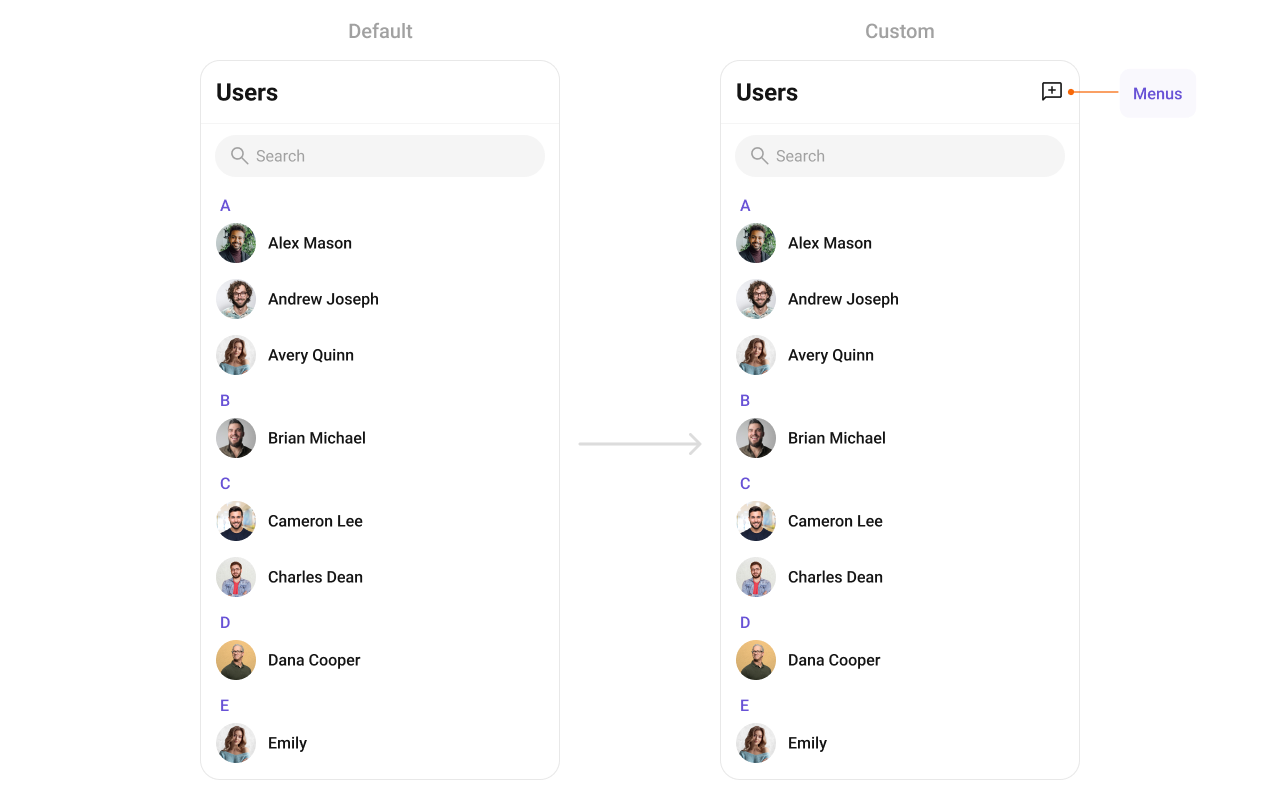
setOverflowMenu
Replace the toolbar overflow menu.
- Kotlin
- Java
- Verify: After setting any custom view slot, confirm the custom view renders in the correct position within the user list item, and the data binding populates correctly for each user.
Common Patterns
Hide all chrome — minimal list
- Kotlin
- Java
Friends-only list
- Kotlin
- Java
Online users only
- Kotlin
- Java
Advanced Methods
Programmatic Selection
selectUser
Programmatically selects or deselects a user. Works with both SINGLE and MULTIPLE selection modes.
- Kotlin
- Java
InSINGLEmode, selecting a new user replaces the previous selection. InMULTIPLEmode, calling this on an already-selected user deselects it (toggle behavior).
clearSelection
Clears all selected users and resets the selection UI.
- Kotlin
- Java
getSelectedUsers
Returns the list of currently selected User objects.
- Kotlin
- Java
Selected Users List
When using multi-select mode, a horizontal list of selected users can be shown above the main list.| Method | Type | Description |
|---|---|---|
setSelectedUsersListVisibility | int (View.VISIBLE / View.GONE) | Show or hide the selected users strip |
setSelectedUserAvatarStyle | @StyleRes int | Avatar style for selected user chips |
setSelectedUserItemTextColor | @ColorInt int | Text color for selected user names |
setSelectedUserItemTextAppearance | @StyleRes int | Text appearance for selected user names |
setSelectedUserItemRemoveIcon | Drawable | Icon for the remove button on each chip |
setSelectedUserItemRemoveIconTint | @ColorInt int | Tint color for the remove icon |
Search Input Customization
The built-in search box can be customized programmatically:| Method | Type | Description |
|---|---|---|
setSearchPlaceholderText | String | Sets the placeholder text for the search input |
setSearchInputTextColor | @ColorInt int | Text color of the search input |
setSearchInputTextAppearance | @StyleRes int | Text appearance of the search input |
setSearchInputPlaceHolderTextColor | @ColorInt int | Placeholder text color |
setSearchInputPlaceHolderTextAppearance | @StyleRes int | Placeholder text appearance |
setSearchInputIcon | Drawable | Leading icon in the search box |
setSearchInputIconTint | @ColorInt int | Tint for the leading icon |
setSearchInputEndIcon | Drawable | Trailing icon in the search box |
setSearchInputEndIconTint | @ColorInt int | Tint for the trailing icon |
setSearchInputStrokeWidth | @Dimension int | Stroke width of the search box border |
setSearchInputStrokeColor | @ColorInt int | Stroke color of the search box border |
setSearchInputBackgroundColor | @ColorInt int | Background color of the search box |
setSearchInputCornerRadius | @Dimension int | Corner radius of the search box |
Internal Access
These methods provide direct access to internal components for advanced use cases.| Method | Returns | Description |
|---|---|---|
getBinding() | CometchatUserListBinding | The ViewBinding for the component’s root layout |
getViewModel() | UsersViewModel | The ViewModel managing user data and state |
getUsersAdapter() | UsersAdapter | The adapter powering the RecyclerView |
setAdapter(UsersAdapter) | void | Replaces the default adapter with a custom one |
Use these only when the standard API is insufficient. Directly manipulating the adapter or ViewModel may conflict with the component’s internal state management.
Style
The component uses XML theme styles. Define a custom style with parentCometChatUsersStyle in themes.xml, then apply with setStyle().
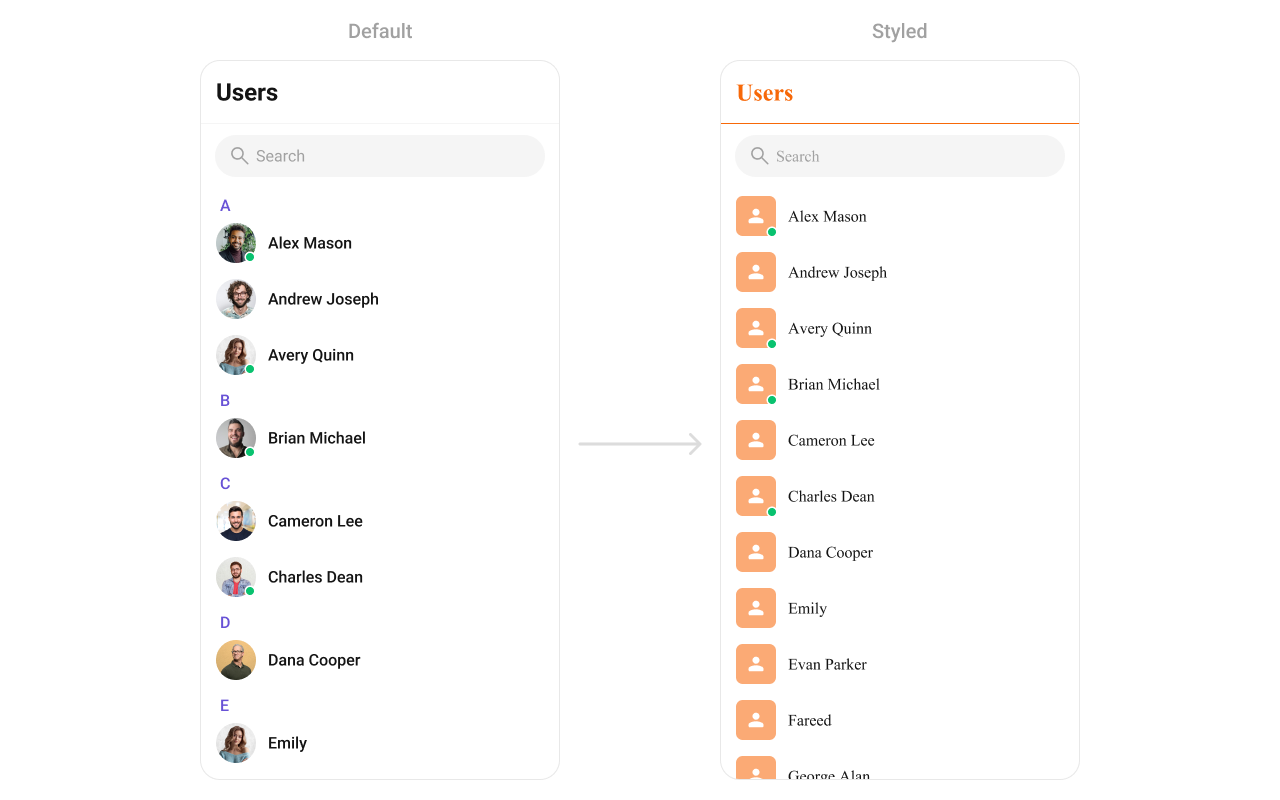
themes.xml
- Kotlin
- Java
Programmatic Style Properties
In addition to XML theme styles, the component exposes programmatic setters for fine-grained control:| Method | Type | Description |
|---|---|---|
setBackgroundColor | @ColorInt int | Background color of the component |
setBackIconTint | @ColorInt int | Tint color for the back icon |
setBackIcon | Drawable | Custom back icon drawable |
setTitleTextColor | @ColorInt int | Title text color in the toolbar |
setTitleTextAppearance | @StyleRes int | Title text appearance in the toolbar |
setItemTitleTextColor | @ColorInt int | Text color for user item titles |
setItemTitleTextAppearance | @StyleRes int | Text appearance for user item titles |
setItemBackgroundColor | @ColorInt int | Background color for list items |
setItemSelectedBackgroundColor | @ColorInt int | Background color for selected list items |
setSeparatorColor | @ColorInt int | Color of list item separators |
setStrokeColor | @ColorInt int | Stroke color of the component border |
setStrokeWidth | @Dimension int | Stroke width of the component border |
setCornerRadius | @Dimension int | Corner radius of the component |
setStickyTitleColor | @ColorInt int | Text color for sticky alphabetical headers |
setStickyTitleAppearance | @StyleRes int | Text appearance for sticky headers |
setStickyTitleBackgroundColor | @ColorInt int | Background color for sticky headers |
setEmptyStateTextColor | @ColorInt int | Title text color for the empty state |
setEmptyStateTextAppearance | @StyleRes int | Title text appearance for the empty state |
setEmptyStateSubtitleTextColor | @ColorInt int | Subtitle text color for the empty state |
setEmptyStateSubTitleTextAppearance | @StyleRes int | Subtitle text appearance for the empty state |
setErrorStateTextColor | @ColorInt int | Title text color for the error state |
setErrorStateTextAppearance | @StyleRes int | Title text appearance for the error state |
setErrorStateSubtitleColor | @ColorInt int | Subtitle text color for the error state |
setErrorStateSubtitleTextAppearance | @StyleRes int | Subtitle text appearance for the error state |
setRetryButtonTextColor | @ColorInt int | Text color for the retry button |
setRetryButtonTextAppearance | @StyleRes int | Text appearance for the retry button |
setRetryButtonBackgroundColor | @ColorInt int | Background color for the retry button |
setRetryButtonStrokeColor | @ColorInt int | Stroke color for the retry button |
setRetryButtonStrokeWidth | @Dimension int | Stroke width for the retry button |
setRetryButtonCornerRadius | @Dimension int | Corner radius for the retry button |
setAvatarStyle | @StyleRes int | Style for user avatars |
setStatusIndicatorStyle | @StyleRes int | Style for online/offline status indicators |
Checkbox Style Properties (Selection Mode)
When usingSINGLE or MULTIPLE selection mode, checkboxes appear on each item:
| Method | Type | Description |
|---|---|---|
setCheckBoxStrokeWidth | @Dimension int | Stroke width of the checkbox border |
setCheckBoxCornerRadius | @Dimension int | Corner radius of the checkbox |
setCheckBoxStrokeColor | @ColorInt int | Stroke color of the checkbox border |
setCheckBoxBackgroundColor | @ColorInt int | Background color of unchecked checkbox |
setCheckBoxCheckedBackgroundColor | @ColorInt int | Background color of checked checkbox |
setCheckBoxSelectIcon | Drawable | Icon shown when checkbox is checked |
setCheckBoxSelectIconTint | @ColorInt int | Tint for the checkbox select icon |
setDiscardSelectionIcon | Drawable | Icon for the discard selection button |
setDiscardSelectionIconTint | @ColorInt int | Tint for the discard selection icon |
setSubmitSelectionIcon | Drawable | Icon for the submit selection button |
setSubmitSelectionIconTint | @ColorInt int | Tint for the submit selection icon |
Customization Matrix
| What to change | Where | Property/API | Example |
|---|---|---|---|
| Override behavior on user interaction | Activity/Fragment | setOn<Event> callbacks | setOnItemClick((v, pos, u) -> { ... }) |
| Filter which users appear | Activity/Fragment | setUsersRequestBuilder | setUsersRequestBuilder(builder) |
| Customize search results | Activity/Fragment | setSearchRequestBuilder | setSearchRequestBuilder(builder) |
| Toggle visibility of UI elements | Activity/Fragment | set<Feature>Visibility(int) | setUserStatusVisibility(View.GONE) |
| Replace a section of the list item | Activity/Fragment | set<Slot>View | setLeadingView(listener) |
| Change colors, fonts, spacing | themes.xml | CometChatUsersStyle | <item name="cometchatUsersSeparatorColor">#F76808</item> |
| Avatar style (corner radius, background) | themes.xml | cometchatUsersAvatarStyle | <item name="cometchatAvatarStrokeRadius">8dp</item> |
| Apply a custom style | Activity/Fragment | setStyle(int styleRes) | cometChatUsers.setStyle(R.style.CustomUsersStyle); |
| Back button visibility | Activity/Fragment | setBackIconVisibility(int) | .setBackIconVisibility(View.VISIBLE); |
| Toolbar visibility | Activity/Fragment | setToolbarVisibility(int) | .setToolbarVisibility(View.GONE); |
| Sticky header visibility | Activity/Fragment | setStickyHeaderVisibility(int) | .setStickyHeaderVisibility(View.GONE); |
| Error state visibility | Activity/Fragment | setErrorStateVisibility(int) | .setErrorStateVisibility(View.GONE); |
| Empty state visibility | Activity/Fragment | setEmptyStateVisibility(int) | .setEmptyStateVisibility(View.GONE); |
| Loading state visibility | Activity/Fragment | setLoadingStateVisibility(int) | .setLoadingStateVisibility(View.GONE); |
| Separator visibility | Activity/Fragment | setSeparatorVisibility(int) | .setSeparatorVisibility(View.GONE); |
| User online status visibility | Activity/Fragment | setUserStatusVisibility(int) | .setUserStatusVisibility(View.GONE); |
| Selection mode (single/multiple) | Activity/Fragment | setSelectionMode(SelectionMode) | .setSelectionMode(UIKitConstants.SelectionMode.MULTIPLE); |
| Search keyword | Activity/Fragment | setSearchKeyword(String) | .setSearchKeyword("john"); |
| Search box visibility | Activity/Fragment | setSearchBoxVisibility(int) | .setSearchBoxVisibility(View.GONE); |
| Custom toolbar title | Activity/Fragment | setTitleText(String) | .setTitleText("Contacts"); |
| Search placeholder | Activity/Fragment | setSearchPlaceholderText(String) | .setSearchPlaceholderText("Find users..."); |
| Long-press options (replace) | Activity/Fragment | setOptions(Function2) | See setOptions code above |
| Long-press options (append) | Activity/Fragment | addOptions(Function2) | See addOptions code above |
| Loading view | Activity/Fragment | setLoadingView(int) | .setLoadingView(R.layout.your_loading_view); |
| Empty view | Activity/Fragment | setEmptyView(int) | .setEmptyView(R.layout.your_empty_view); |
| Error view | Activity/Fragment | setErrorView(int) | .setErrorView(R.layout.your_error_view); |
| Leading view (avatar area) | Activity/Fragment | setLeadingView(UsersViewHolderListener) | See setLeadingView code above |
| Title view | Activity/Fragment | setTitleView(UsersViewHolderListener) | See setTitleView code above |
| Trailing view | Activity/Fragment | setTrailingView(UsersViewHolderListener) | See setTrailingView code above |
| Entire list item | Activity/Fragment | seItemView(UsersViewHolderListener) | See setItemView code above |
| Subtitle view | Activity/Fragment | setSubtitleView(UsersViewHolderListener) | See setSubtitleView code above |
| Overflow menu | Activity/Fragment | setOverflowMenu(View) | cometChatUsers.setOverflowMenu(view); |
| Programmatic selection | Activity/Fragment | selectUser(User, SelectionMode) | .selectUser(user, SelectionMode.SINGLE); |
| Clear selection | Activity/Fragment | clearSelection() | .clearSelection(); |
| Selected users strip | Activity/Fragment | setSelectedUsersListVisibility(int) | .setSelectedUsersListVisibility(View.VISIBLE); |
| Internal adapter access | Activity/Fragment | getUsersAdapter() / setAdapter() | Advanced use only |
Accessibility
The component renders a scrollableRecyclerView of interactive user items. Each user row responds to tap and long-press gestures. Avatar images include the user name as content description. The alphabetical sticky headers provide section navigation for screen readers.
For custom views provided via setLeadingView, setTitleView, setTrailingView, or seItemView, ensure you set android:contentDescription on visual-only elements so TalkBack can announce them. The default views handle this automatically.
Online/offline status dots are visual-only by default. If screen reader descriptions are needed, provide them via a custom view with appropriate contentDescription attributes.