

AI Agent Component Spec
AI Agent Component Spec
Where It Fits
CometChatIncomingCall is a call-handling component. It renders when the logged-in user receives an incoming voice or video call, displaying the caller’s information and providing accept/reject controls. Wire it to CometChatOngoingCallActivity after the user accepts the call.
- Kotlin
- Java
CallHandlerActivity.kt
Quick Start
Add the component to your layout XML:layout_activity.xml
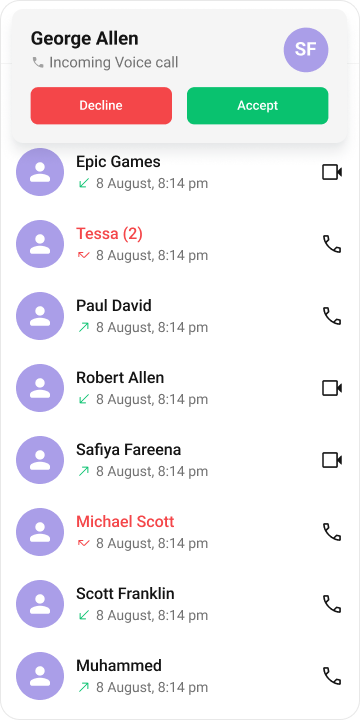
CometChatUIKit.init(), a user logged in, and the cometchat-chat-uikit-android dependency added.
In your Activity, get a reference and set the Call object:
- Kotlin
- Java
YourActivity.kt
- Kotlin
- Java
YourActivity.kt
- Kotlin
- Java
YourFragment.kt
Actions and Events
Callback Methods
setOnAcceptClick
Fires when the user taps the accept button. Override this to replace the default call-accept behavior.
- Kotlin
- Java
YourActivity.kt
What this does: Replaces the default accept-button behavior. When the user taps the accept button, your custom OnClick lambda executes instead of the built-in call-accept logic.
setOnRejectClick
Fires when the user taps the reject button. Override this to replace the default call-reject behavior.
- Kotlin
- Java
YourActivity.kt
What this does: Replaces the default reject-button behavior. When the user taps the reject button, your custom OnClick lambda executes instead of the built-in call-decline logic.
setOnError
Fires on internal errors (network failure, call failure, SDK exception).
- Kotlin
- Java
YourActivity.kt
What this does: Registers an error listener. If the component encounters an error, your callback receives the CometChatException so you can handle it with custom logic.
- Verify: After setting an action callback, trigger the corresponding user interaction (tap accept, tap reject) and confirm your custom logic executes instead of the default behavior.
Global UI Events (CometChatCallEvents)
CometChatCallEvents emits events subscribable from anywhere in the application. Add a listener and remove it when no longer needed.
| Event | Fires when | Payload |
|---|---|---|
ccCallAccepted | A call is accepted | Call |
ccCallRejected | A call is rejected | Call |
ccCallEnded | A call is ended | Call |
ccOutgoingCall | An outgoing call is initiated | Call |
- Kotlin
- Java
Add Listener
SDK Events
The component listens to these SDK events internally. No manual attachment needed unless additional side effects are required.| SDK Listener | Internal behavior |
|---|---|
onIncomingCallReceived | Triggers the incoming call screen display |
onIncomingCallCancelled | Dismisses the incoming call screen |
Automatic: call state changes update the component in real time.
Functionality
Small functional customizations such as toggling call sounds and setting custom ringtones.| Method | Description | Code |
|---|---|---|
disableSoundForCalls | Disables the ringtone for incoming calls | .disableSoundForCalls(true); |
setCustomSoundForCalls | Sets a custom ringtone from res/raw | .setCustomSoundForCalls(R.raw.custom_ringtone); |
- Verify: After calling
disableSoundForCalls(true), confirm no ringtone plays on incoming calls. After callingsetCustomSoundForCalls, confirm the custom sound plays.
Custom View Slots
Each slot replaces a section of the default UI. IncomingCall view slots accept plainView objects (not ViewHolderListener).
| Slot | Method | Replaces |
|---|---|---|
| Item view | setItemView(View) | Entire incoming call card |
| Leading view | setLeadingView(View) | Avatar / left section |
| Title view | setTitleView(View) | Caller name / title text |
| Subtitle view | setSubtitleView(View) | Subtitle text below name |
| Trailing view | setTrailingView(View) | Right section |
setItemView
Replace the entire incoming call card with a custom view.
- Kotlin
- Java
YourActivity.kt
What this does: Replaces the entire default incoming call card with your custom View. The custom view is responsible for rendering all caller information and call controls.
setLeadingView
Replace the avatar / left section.
- Kotlin
- Java
YourActivity.kt
What this does: Replaces the default leading (left) area of the incoming call screen with your custom View.
Example:
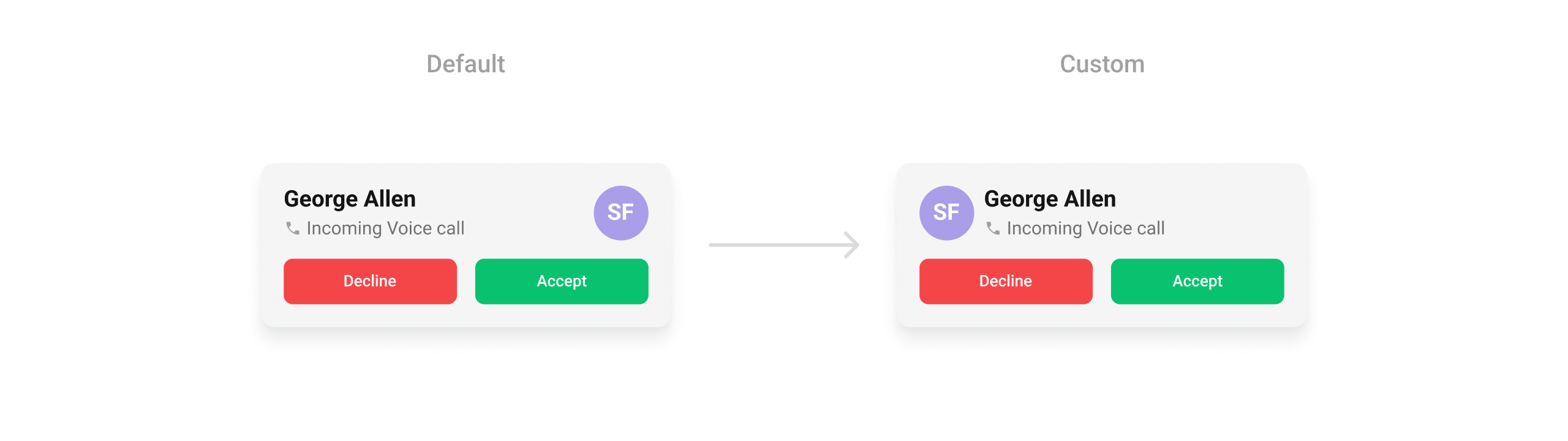
leading_view.xml
- Kotlin
- Java
YourActivity.kt
setTitleView
Replace the caller name / title text.
- Kotlin
- Java
YourActivity.kt
What this does: Replaces the default title area of the incoming call screen with your custom View.
Example:
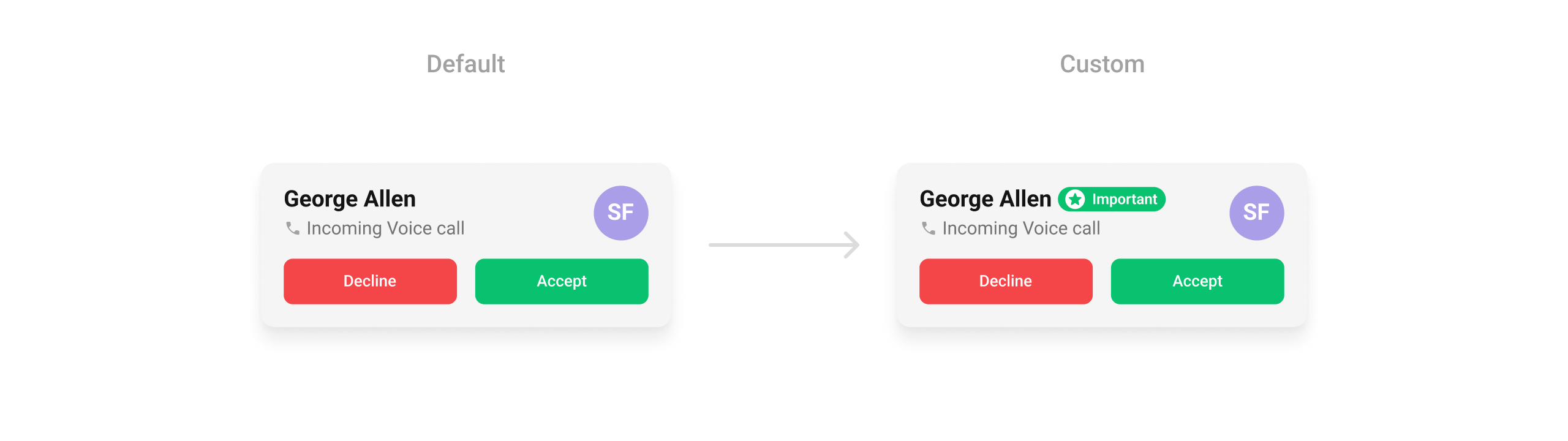
custom_title_view.xml
- Kotlin
- Java
YourActivity.kt
setSubtitleView
Replace the subtitle text below the caller’s name.
- Kotlin
- Java
YourActivity.kt
What this does: Replaces the default subtitle area of the incoming call screen with your custom View. Use this to show additional information below the caller’s name.
setTrailingView
Replace the right section of the incoming call card.
- Kotlin
- Java
YourActivity.kt
What this does: Replaces the default trailing (right) area of the incoming call screen with your custom View.
Example:
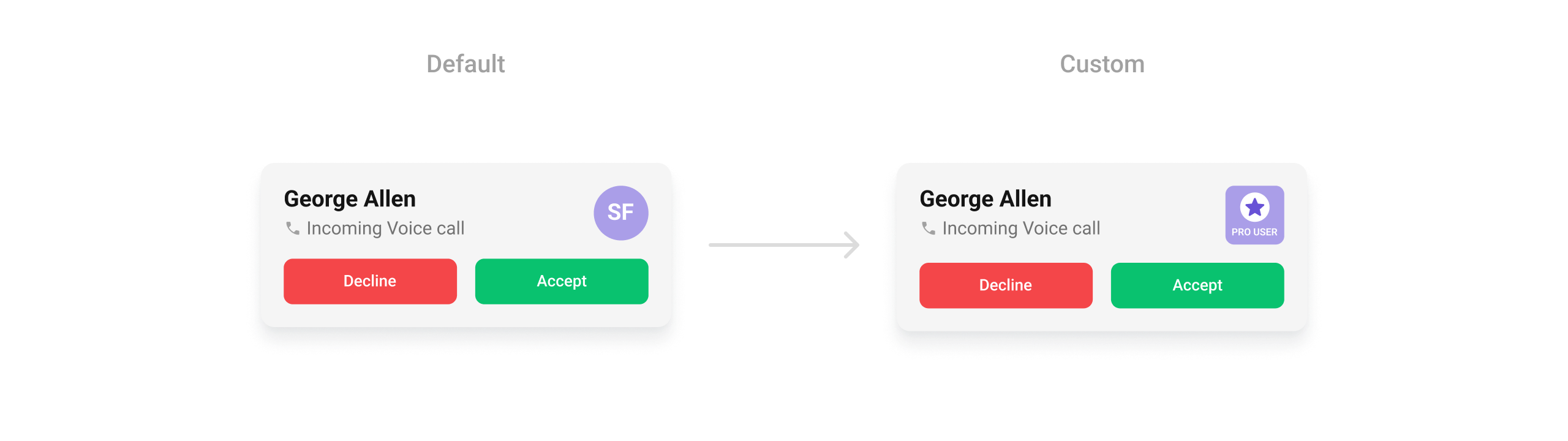
trailing_view.xml
- Kotlin
- Java
YourActivity.kt
- Verify: After setting any custom view slot, confirm the custom view renders in the correct position on the incoming call screen and displays the expected caller information.
Common Patterns
Silent incoming call
- Kotlin
- Java
Custom ringtone
- Kotlin
- Java
Custom call settings
- Kotlin
- Java
Override accept to add logging
- Kotlin
- Java
Advanced Methods
setCall
Sets the Call object for the incoming call screen. Required for accept/reject actions to work correctly. The component extracts the caller’s name, avatar, and call type from this object.
- Kotlin
- Java
setCallSettingsBuilder
Provides a custom CallSettingsBuilder to configure call settings (audio mode, video resolution, etc.) used when the call is accepted.
- Kotlin
- Java
Internal Access
These methods provide direct access to internal components for advanced use cases.| Method | Returns | Description |
|---|---|---|
getViewModel() | IncomingCallViewModel | The ViewModel managing call state and actions |
getBinding() | CometchatIncomingCallComponentBinding | The ViewBinding for the component’s root layout |
Use these only when the standard API is insufficient. Directly manipulating the ViewModel or binding may conflict with the component’s internal state management.
Style
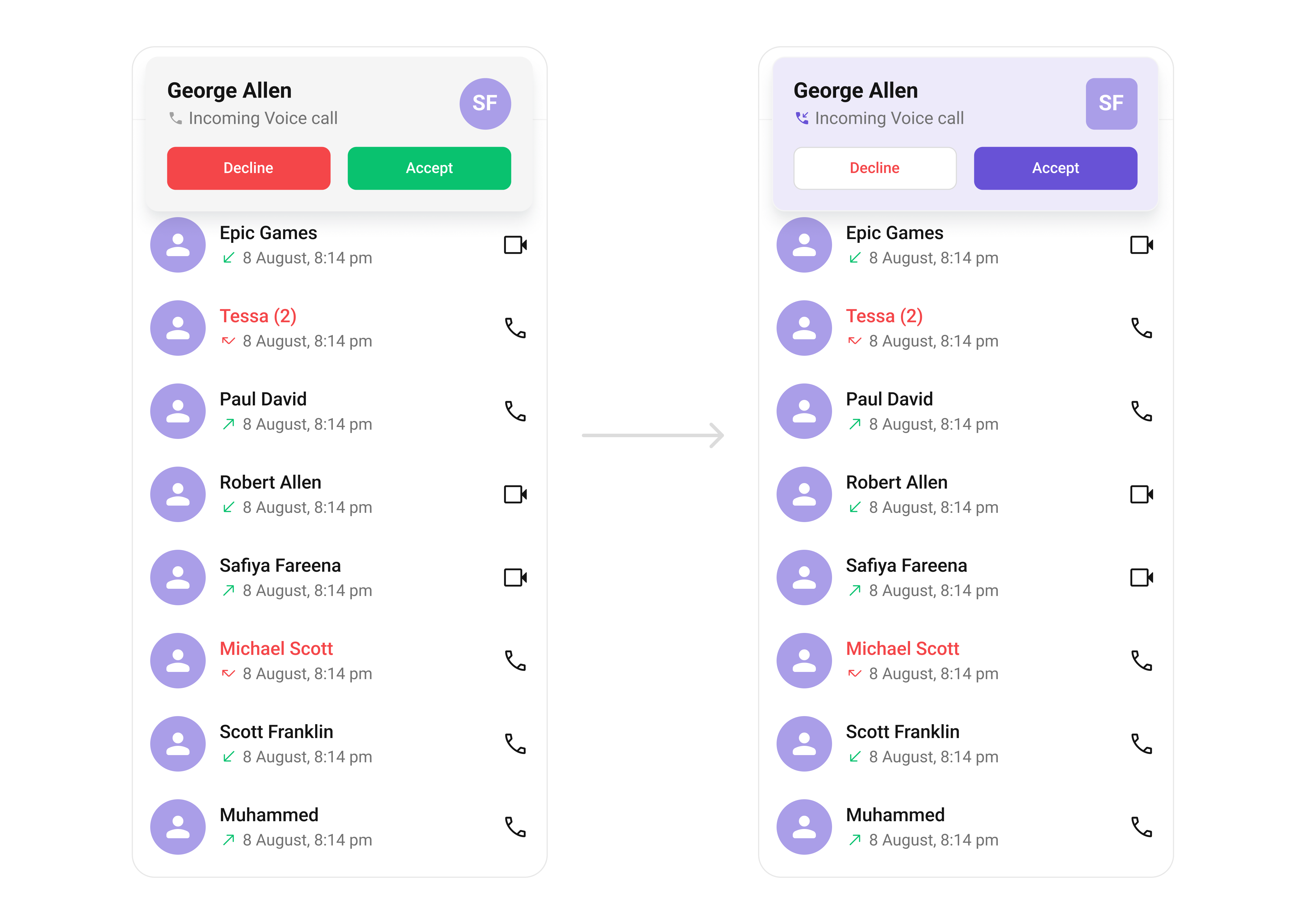
The component uses XML theme styles. Define a custom style with parentCometChatIncomingCallStyle in themes.xml, then apply with setStyle().
themes.xml
- Kotlin
- Java
Programmatic Style Properties
In addition to XML theme styles, the component exposes programmatic setters for fine-grained control:| Method | Type | Description |
|---|---|---|
setBackgroundColor | @ColorInt int | Background color of the component |
setTitleTextColor | @ColorInt int | Text color for the caller name |
setTitleTextAppearance | @StyleRes int | Text appearance for the caller name |
setSubtitleTextColor | @ColorInt int | Text color for the call type subtitle |
setSubtitleTextAppearance | @StyleRes int | Text appearance for the call type subtitle |
setIconTint | @ColorInt int | Tint color for the call type icon |
setVoiceCallIcon | Drawable | Custom icon for voice calls |
setVideoCallIcon | Drawable | Custom icon for video calls |
setAcceptCallButtonBackgroundColor | @ColorInt int | Background color for the accept button |
setRejectCallButtonBackgroundColor | @ColorInt int | Background color for the reject button |
setAcceptButtonTextColor | @ColorInt int | Text color for the accept button |
setRejectButtonTextColor | @ColorInt int | Text color for the reject button |
setAcceptButtonTextAppearance | @StyleRes int | Text appearance for the accept button |
setRejectButtonTextAppearance | @StyleRes int | Text appearance for the reject button |
setCornerRadius | @Dimension int | Corner radius of the component card |
setStrokeWidth | @Dimension int | Stroke width of the component border |
setStrokeColor | @ColorInt int | Stroke color of the component border |
setAvatarStyle | @StyleRes int | Style for the caller avatar |
- Verify: The incoming call screen displays with a purple background (
#AA9EE8), custom button colors, and avatars with rounded corners (8dp radius) and an orange background (#FBAA75).
Customization Matrix
| What to change | Where | Property/API | Example |
|---|---|---|---|
| Background color | themes.xml | CometChatIncomingCallStyle with cometchatIncomingCallBackgroundColor | <item name="cometchatIncomingCallBackgroundColor">#AA9EE8</item> |
| Icon tint | themes.xml | CometChatIncomingCallStyle with cometchatIncomingCallIconTint | <item name="cometchatIncomingCallIconTint">?attr/cometchatPrimaryColor</item> |
| Reject button background | themes.xml | CometChatIncomingCallStyle with cometchatIncomingCallRejectButtonBackgroundColor | <item name="cometchatIncomingCallRejectButtonBackgroundColor">?attr/cometchatColorWhite</item> |
| Accept button background | themes.xml | CometChatIncomingCallStyle with cometchatIncomingCallAcceptButtonBackgroundColor | <item name="cometchatIncomingCallAcceptButtonBackgroundColor">?attr/cometchatPrimaryColor</item> |
| Reject button text color | themes.xml | CometChatIncomingCallStyle with cometchatIncomingCallRejectButtonTextColor | <item name="cometchatIncomingCallRejectButtonTextColor">?attr/cometchatErrorColor</item> |
| Accept button text color | themes.xml | CometChatIncomingCallStyle with cometchatIncomingCallAcceptButtonTextColor | <item name="cometchatIncomingCallAcceptButtonTextColor">?attr/cometchatColorWhite</item> |
| Reject button text appearance | themes.xml | CometChatIncomingCallStyle with cometchatIncomingCallRejectButtonTextAppearance | <item name="cometchatIncomingCallRejectButtonTextAppearance">?attr/cometchatTextAppearanceButtonMedium</item> |
| Accept button text appearance | themes.xml | CometChatIncomingCallStyle with cometchatIncomingCallAcceptButtonTextAppearance | <item name="cometchatIncomingCallAcceptButtonTextAppearance">?attr/cometchatTextAppearanceButtonMedium</item> |
| Avatar style | themes.xml | CometChatIncomingCallStyle with cometchatIncomingCallAvatarStyle | <item name="cometchatIncomingCallAvatarStyle">@style/CustomAvatarStyle</item> |
| Apply a custom style | Activity/Fragment | setStyle(int styleRes) | cometchatIncomingCall.setStyle(R.style.CustomIncomingCallStyle); |
| Call object | Activity/Fragment | setCall(Call) | .setCall(call) |
| Custom call sound | Activity/Fragment | setCustomSoundForCalls(@RawRes int) | .setCustomSoundForCalls(R.raw.custom_ringtone); |
| Disable call sound | Activity/Fragment | disableSoundForCalls(boolean) | .disableSoundForCalls(true) |
| Call settings | Activity/Fragment | setCallSettingsBuilder(CallSettingsBuilder) | .setCallSettingsBuilder(builder) |
| Accept button action | Activity/Fragment | setOnAcceptClick(OnClick) | See setOnAcceptClick code above |
| Reject button action | Activity/Fragment | setOnRejectClick(OnClick) | See setOnRejectClick code above |
| Error handler | Activity/Fragment | setOnError(OnError) | See setOnError code above |
| Entire call card view | Activity/Fragment | setItemView(View) | cometchatIncomingCall.setItemView(view); |
| Leading view (avatar area) | Activity/Fragment | setLeadingView(View) | See setLeadingView code above |
| Title view (caller name) | Activity/Fragment | setTitleView(View) | See setTitleView code above |
| Subtitle view | Activity/Fragment | setSubtitleView(View) | cometchatIncomingCall.setSubtitleView(view); |
| Trailing view | Activity/Fragment | setTrailingView(View) | See setTrailingView code above |
Accessibility
The component renders a full-screen incoming call card with interactive accept and reject buttons. The caller’s avatar includes the caller name as content description. The accept and reject buttons are labeled for screen readers. For custom views provided viasetLeadingView, setTitleView, setSubtitleView, or setTrailingView, ensure you set android:contentDescription on visual-only elements so TalkBack can announce them. The default views handle this automatically.
The call type icon (voice/video) is visual-only by default. If screen reader descriptions are needed, provide them via a custom view with appropriate contentDescription attributes.