AI Agent Component Spec
AI Agent Component Spec
| Field | Value |
|---|---|
| Package | com.cometchat:chat-uikit-android + com.cometchat:calls-sdk-android (implementation 'com.cometchat:calls-sdk-android:4.+.+') |
| Required setup | CometChatUIKit.init() then CometChatUIKit.login() — Calls SDK must also be installed |
| Call features | Incoming Call, Outgoing Call, Call Logs, Call Buttons |
| Key components | CometChatCallButtons → Call Buttons, CometChatIncomingCall → Incoming Call, CometChatOutgoingCall → Outgoing Call, CometChatCallLogs → Call Logs |
| Auto-detection | UI Kit automatically detects the Calls SDK and enables call UI components |
| Related | Getting Started, Core Features, Call Log Details Guide |
Integration
First, make sure that you’ve correctly integrated the UI Kit library into your project. If you haven’t done this yet or are facing difficulties, refer to our Getting Started guide. This guide will walk you through a step-by-step process of integrating our UI Kit into your Android project. Once you’ve successfully integrated the UI Kit, the next step is to add the CometChat Calls SDK to your project. This is necessary to enable the calling features in the UI Kit.Step 1: Add Calls SDK Dependency
Add the following dependency to yourbuild.gradle file:
Step 2: Verify Call Buttons Appear
Once the Calls SDK is integrated, you will see the CallButtons component automatically rendered in the MessageHeader component. This provides users with quick access to initiate audio and video calls.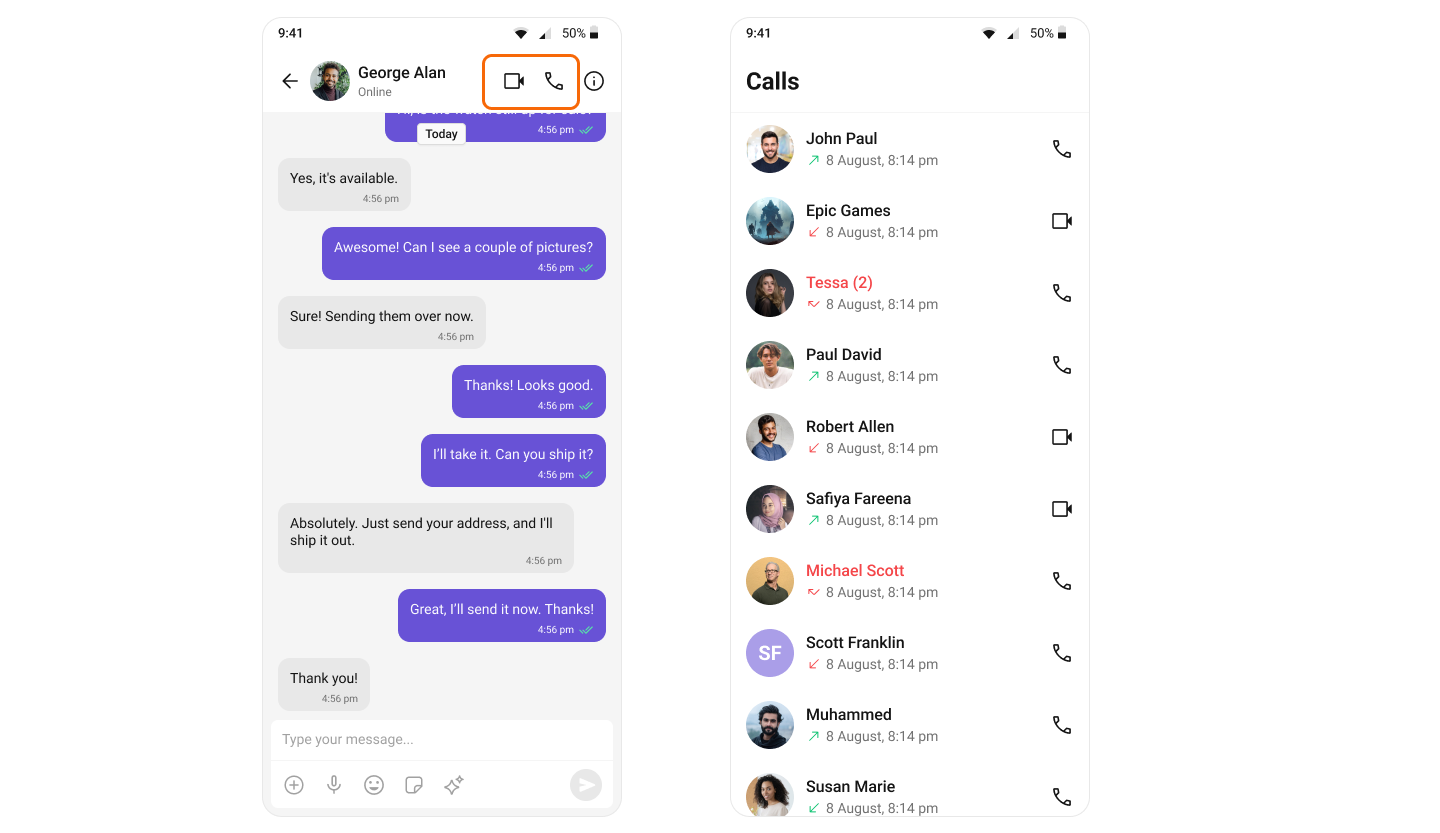
Step 3: Add Call Listener for Incoming Calls
To receive incoming calls globally in your app, you will need to add aCallListener. This should be added before you initialize the CometChat UI Kit. We recommend creating a custom Application class and adding the call listener there.
When an incoming call is received, you can display the CometChatIncomingCall component using the current activity context.
- Kotlin
- Java
Call Components
The CometChat Android UI Kit provides four main components for implementing calling features in your app. Each component handles a specific part of the calling experience.Call Buttons
The Call Buttons component provides users with quick access to initiate audio and video calls. This component is automatically rendered in the MessageHeader when the Calls SDK is integrated.
Incoming Call
The Incoming Call component displays when a user receives an incoming call. It provides a full-screen interface showing caller information and call controls.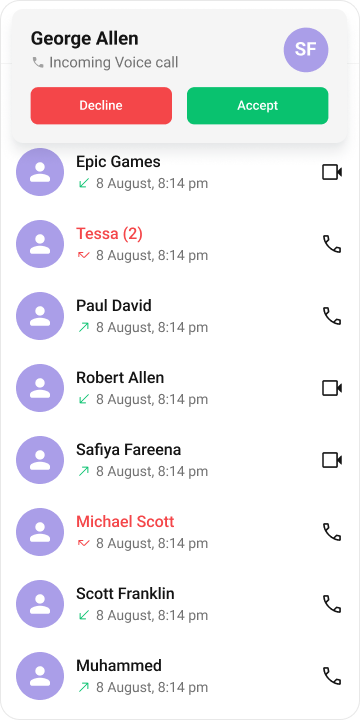
Outgoing Call
The Outgoing Call component manages the outgoing call experience. It displays while waiting for the recipient to answer and automatically transitions to the active call screen once accepted.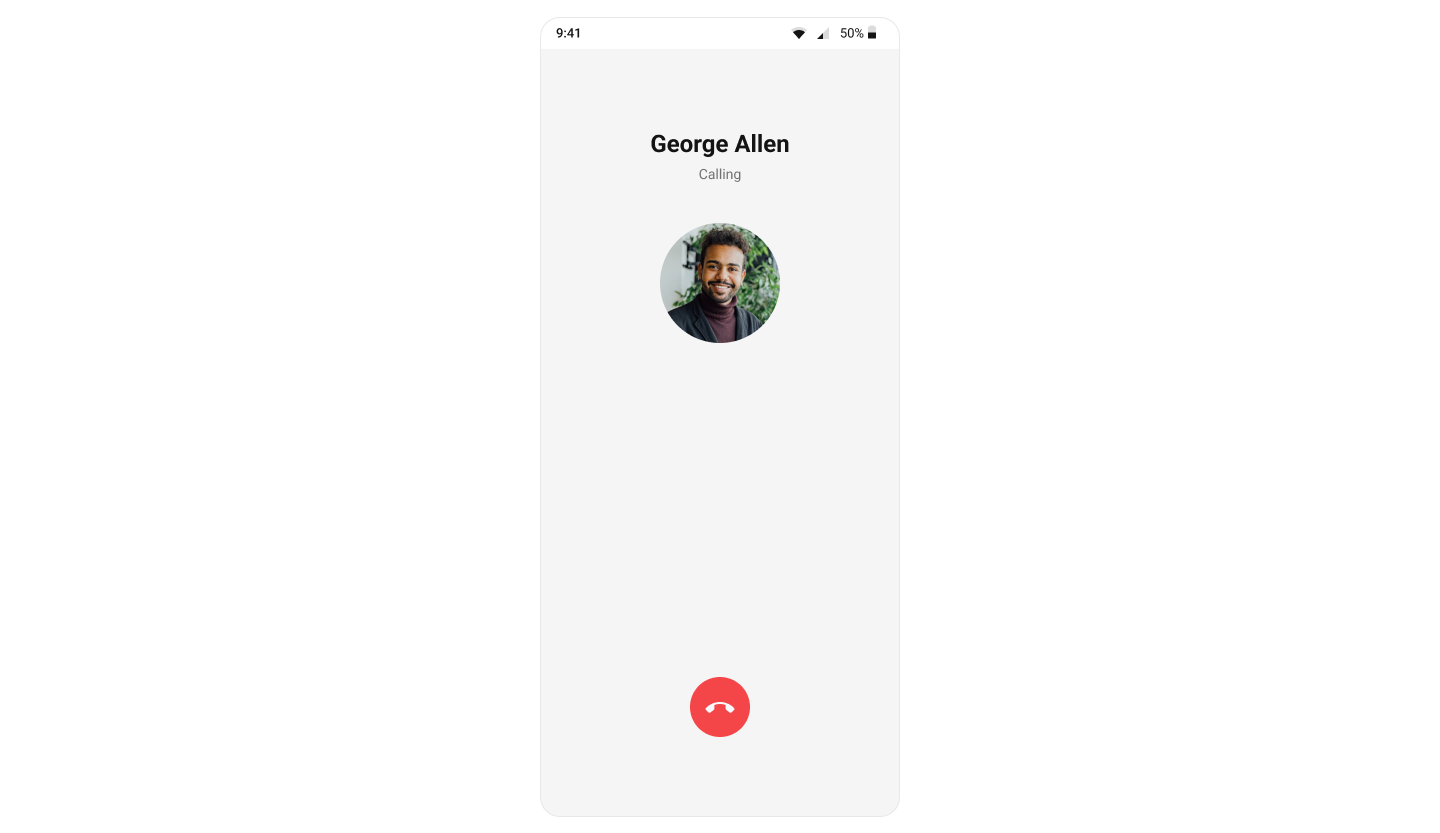
Call Logs
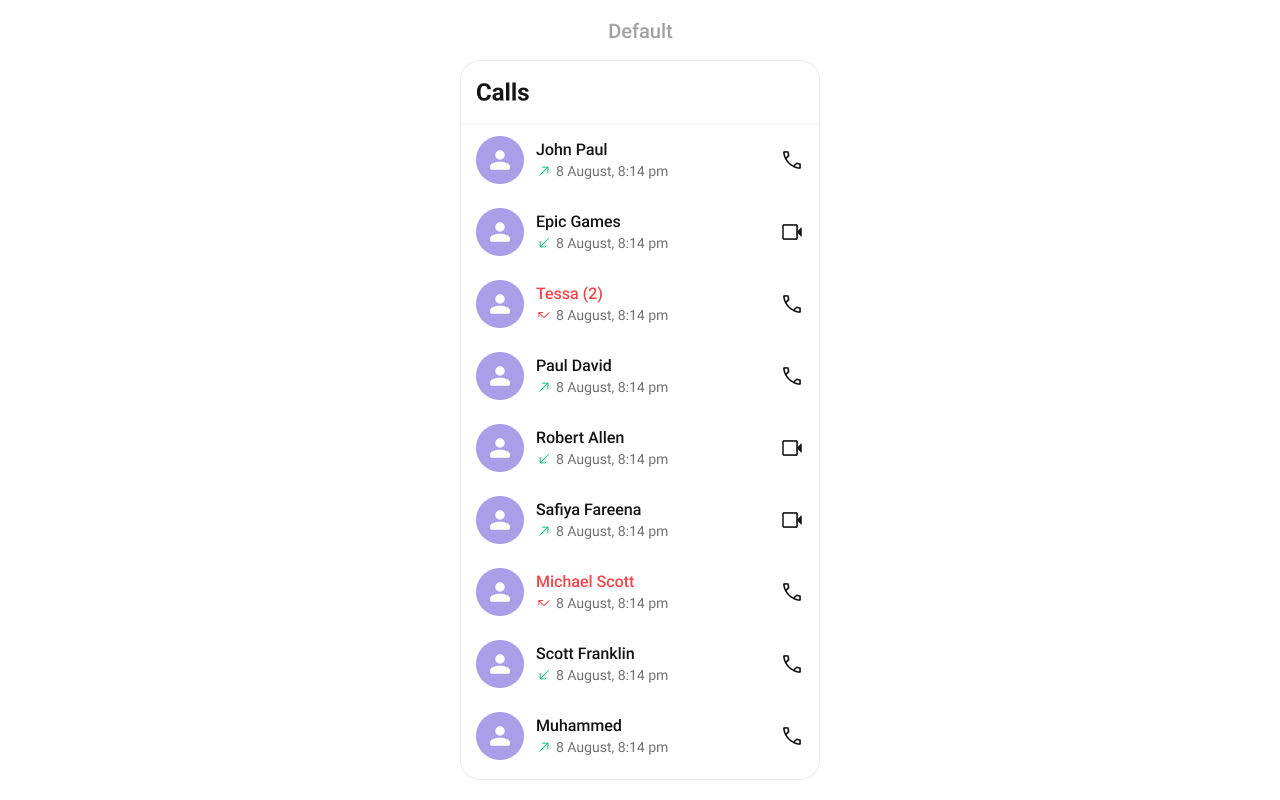
The Call Logs component displays a history of all call activities, including missed, received, and dialed calls. Users can view call details and initiate new calls from the log.