

AI Agent Component Spec
AI Agent Component Spec
| Field | Value |
|---|---|
| Package | @cometchat/chat-uikit-react |
| Peer deps | react >=18, react-dom >=18, rxjs ^7.8.1 |
| Init | CometChatUIKit.init(UIKitSettings) — must resolve before login() |
| Login | CometChatUIKit.login("UID") — must resolve before rendering components |
| Order | init() → login() → render. Breaking this order = blank screen |
| Auth Key | Dev/testing only. Use Auth Token in production |
| CSS | @import url("@cometchat/chat-uikit-react/css-variables.css"); in global CSS |
| Calling | Optional. Install @cometchat/calls-sdk-javascript to enable |
| Other frameworks | Next.js · React Router · Astro |
Prerequisites
You need three things from the CometChat Dashboard:| Credential | Where to find it |
|---|---|
| App ID | Dashboard → Your App → Credentials |
| Auth Key | Dashboard → Your App → Credentials |
| Region | Dashboard → Your App → Credentials (e.g. us, eu, in) |
Step 1 — Create a React Project
- Vite (recommended)
- Create React App
Step 2 — Install the UI Kit
- npm
- yarn
@cometchat/chat-sdk-javascript automatically.
If you want voice/video calling, also install:
Step 3 — Initialize CometChat
Create a constants file and initialize the UI Kit before anything else.src/AppConstants.ts
- TypeScript
- JavaScript
By default, session data is stored in
localStorage. To use sessionStorage instead, see Setting Session Storage Mode.Step 4 — Login
After init resolves, log the user in. For development, use one of the pre-created test UIDs:cometchat-uid-1 · cometchat-uid-2 · cometchat-uid-3 · cometchat-uid-4 · cometchat-uid-5
- TypeScript
- JavaScript
getLoggedinUser()checks for an existing session so you don’t re-login unnecessarily.login(uid)skips the API call if a session already exists and returns the cached user.- Components must not render until login resolves — use a state flag to gate rendering.
For production, use
loginWithAuthToken() instead of Auth Key. Generate tokens server-side via the REST API.Step 5 — Add the CSS Import
Add this line at the top of your global CSS file (e.g.src/App.css or src/index.css):
src/App.css
Step 6 — Choose a Chat Experience
Integrate a conversation view that suits your app’s UX. Each option below includes a live CodeSandbox demo and a step-by-step guide.Conversation List + Message View
Two-panel layout — conversation list on the left, messages on the right. Think WhatsApp Web or Slack.- Two-panel layout with conversation list and active chat window
- Switch between one-to-one and group conversations
- Tap-to-view on mobile — tapping a conversation opens the message view
- Real-time updates and message sync across sessions
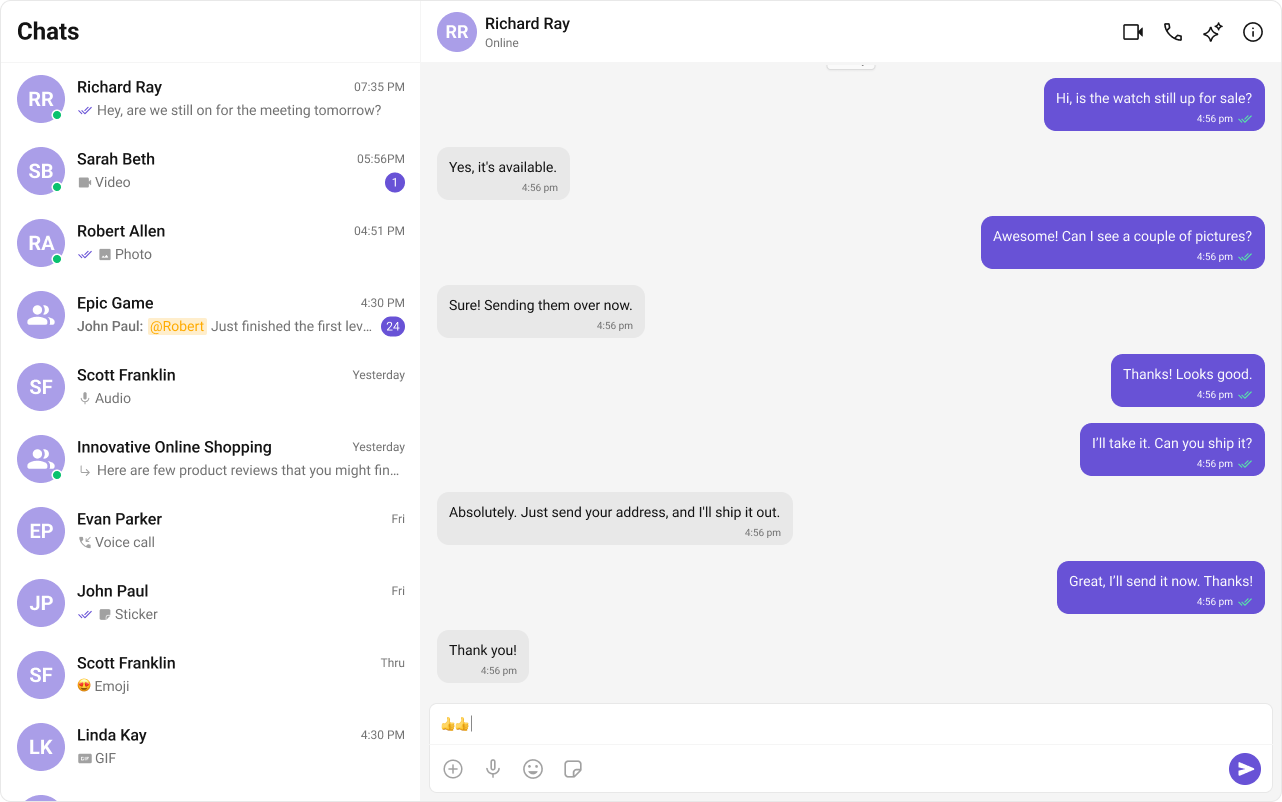

Tip: Fork the sandbox, insert your CometChat credentials (App ID, Region, Auth Key), and preview the UI in real time.
Build Conversation List + Message View
Step-by-step guide to build this layout
One-to-One / Group Chat
Single chat window — no sidebar. Good for support chat, embedded widgets, or focused messaging.- Dedicated chat window for one-on-one or group messaging
- No conversation list — users go directly into the chat
- Full-screen experience optimized for mobile
- Ideal for support chat or community messaging

Tip: Fork the sandbox, insert your CometChat credentials (App ID, Region, Auth Key), and preview the UI in real time.
Build One-to-One / Group Chat
Step-by-step guide to build this layout
Tab-Based Chat
Tabbed navigation — Chat, Call Logs, Users, Settings in separate tabs. Good for full-featured apps.- Tab navigation between Chat, Call Logs, Users, and Settings
- Full-screen messaging within each tab
- Unified experience for conversations, call history, and settings
- Scales well for adding future features like notifications or contacts
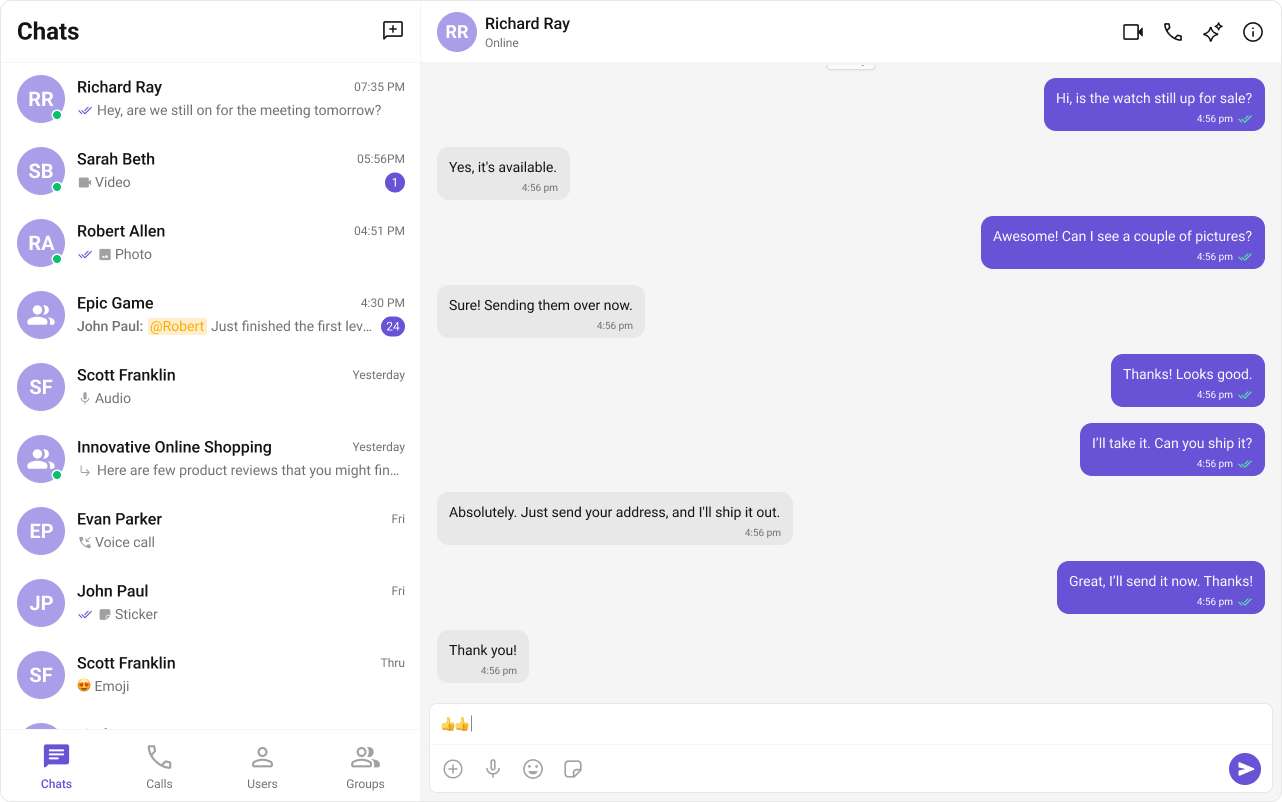
Tip: Fork the sandbox, insert your CometChat credentials (App ID, Region, Auth Key), and preview the UI in real time.
Build Tab-Based Chat
Step-by-step guide to build this layout
Build Your Own Chat Experience
Need full control over the UI? Use individual components, customize themes, and wire up your own layouts.- Sample App — Working reference app to compare against
- Components — All prebuilt UI elements with props and customization options
- Core Features — Messaging, real-time updates, and other capabilities
- Theming — Colors, fonts, dark mode, and custom styling
- Build Your Own UI — Skip the UI Kit entirely and build on the raw SDK
iFrame Embedding
If your React app runs inside an<iframe>, wrap your tree in CometChatFrameProvider so dialogs and portals mount in the correct frame:
| Prop | Type | Description |
|---|---|---|
iframeId | string | The DOM id of the target <iframe> element |