

AI Agent Component Spec
AI Agent Component Spec
| Field | Value |
|---|---|
| Package | @cometchat/chat-uikit-react |
| Framework | React.js |
| Components | CometChatConversations, CometChatMessageHeader, CometChatMessageList, CometChatMessageComposer |
| Layout | Two-panel — conversation list (left) + message view (right) |
| Prerequisite | Complete React.js Integration Steps 1–5 first |
| Pattern | WhatsApp Web, Slack, Microsoft Teams |
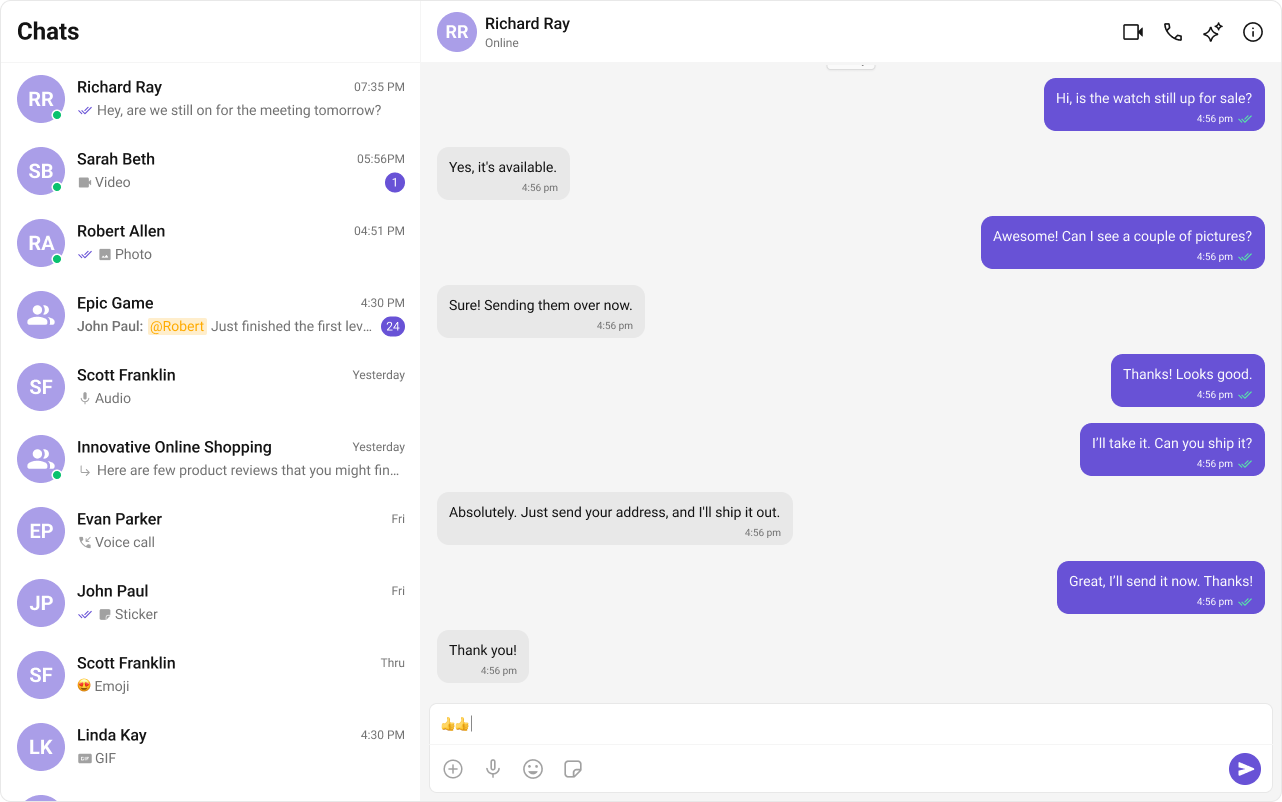

Fork the sandbox, insert your CometChat credentials (App ID, Region, Auth Key), and preview the UI in real time.
What You’re Building
Three sections working together:- Sidebar (conversation list) — shows all active conversations (users and groups)
- Message view — displays chat messages for the selected conversation in real time
- Message composer — text input with support for media, emojis, and reactions
Step 1 — Create the Sidebar Component
Create aCometChatSelector folder inside src/:
src
CometChatSelector
CometChatSelector.tsx
CometChatSelector.css
- TypeScript
- CSS
CometChatSelector.tsx
CometChatUIKitLoginListener.getLoggedInUser()checks for an active session — the component only renders if a user is logged in.activeConversationhighlights the currently selected conversation in the list.onItemClickfires when a user taps a conversation, passing theConversationobject to the parent.
Step 2 — Update App.tsx and App.css
Wire the sidebar and message components together in your main app file.- TypeScript
- CSS
App.tsx
- When a conversation is tapped,
onSelectorItemClickedextracts theUserorGroupfrom theConversationobject. selectedUser/selectedGroupstate drives which chat is displayed — pass eitheruserorgroupto the message components, never both.- The empty state shows until a conversation is selected.
Step 3 — Run the Project
- Vite
- Create React App