

AI Agent Component Spec
AI Agent Component Spec
| Field | Value |
|---|---|
| Package | @cometchat/chat-uikit-react |
| Framework | React Router |
| Components | CometChatConversations, CometChatMessageHeader, CometChatMessageList, CometChatMessageComposer |
| Layout | Two-panel — conversation list (left) + message view (right) |
| Prerequisite | Complete React Router Integration Steps 1–5 first |
| SSR | Lazy import + mounted check — CometChat requires browser APIs |
| Pattern | WhatsApp Web, Slack, Microsoft Teams |
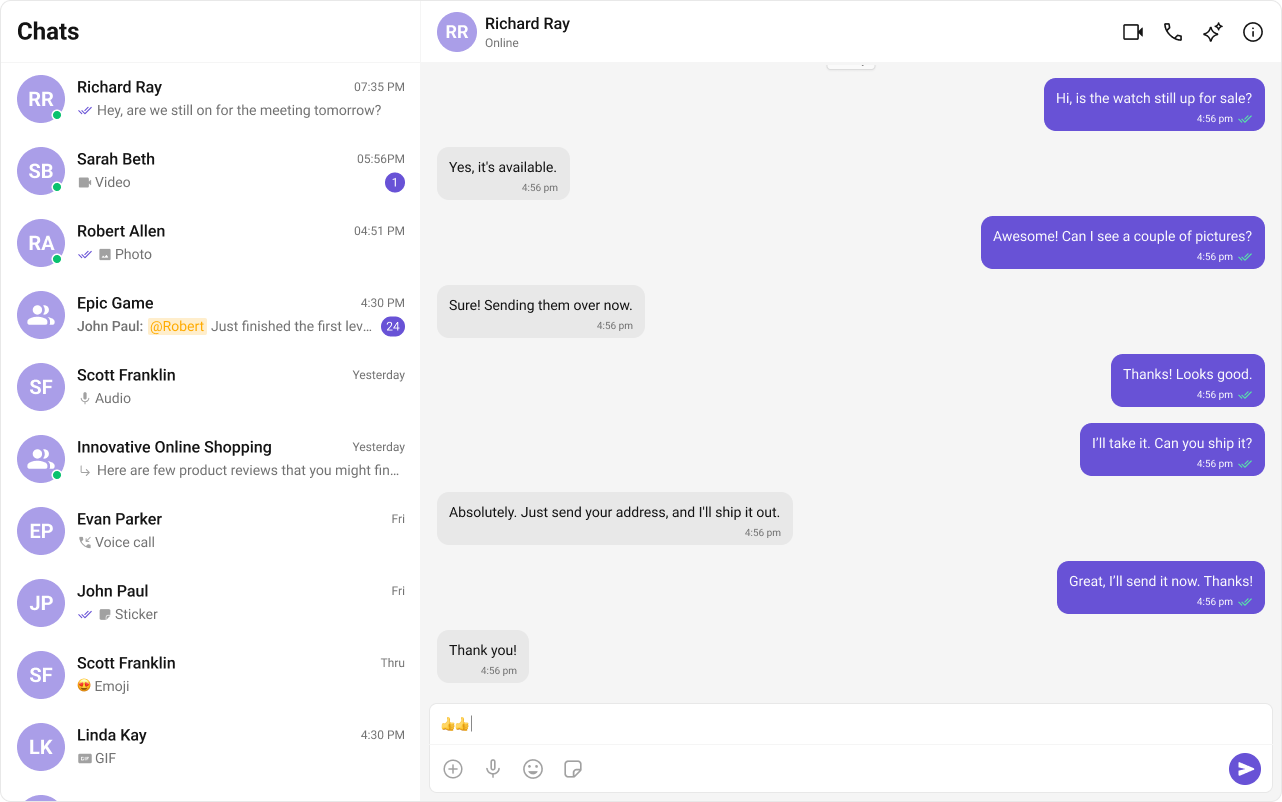
What You’re Building
Three sections working together:- Sidebar (conversation list) — shows all active conversations (users and groups)
- Message view — displays chat messages for the selected conversation in real time
- Message composer — text input with support for media, emojis, and reactions
Step 1 — Create the Sidebar Component
src
app
CometChatSelector
CometChatSelector.tsx
CometChatSelector.css
- TypeScript
- CSS
CometChatSelector.tsx
Step 2 — Create the CometChatNoSSR Component
This component handles init, login, and renders the full chat experience. It runs client-side only.src
app
CometChatNoSSR
CometChatNoSSR.tsx
CometChatNoSSR.css
- TypeScript
- CSS
CometChatNoSSR.tsx
Step 3 — Disable SSR and Add the Route
CreateCometChat.tsx inside the routes folder. This uses lazy loading and a mounted check to ensure CometChat only runs client-side.
routes/CometChat.tsx
routes.ts
window, WebSocket, document). The lazy import + mounted check ensures the component only renders on the client.
Step 4 — Run the Project
- npm
- pnpm
- yarn
/chat (e.g. http://localhost:5173/chat). You should see the conversation list on the left. Tap any conversation to load messages on the right.